Skip to navigation Skip to main content Click to view our statement on Accessibility

Lines of Business

  • Individuals
  • Businesses
  • Partners

Account

  • About us
    • Our story
    • Company leadership
    • Community involvement
    • Annual report
    • Research
    • Careers
    • Newsroom
      About us
    • Our story
    • Company leadership
    • Community involvement
    • Annual report
    • Research
    • Careers
    • Newsroom
  • Contact us
  • Account
    • Zing® Marketplace
    • Pay my bill
    • Business claims
    • JM® Shipping Solution claims
      Account
    • Zing® Marketplace
    • Pay my bill
    • Business claims
    • JM® Shipping Solution claims
Navy Jewelers Mutual Logo
White Jewelers Mutual Logo

Commercial

  • Protect your business
      Protect your business
    • Business Insurance
        Business Insurance
      • Business Owners Policy
      • Jewelers Block
      • Commercial Umbrella
      • Claims
      Business Protection
      • Business Owners Policy
      • Jewelers Block
      • Commercial Umbrella
      • Claims
    • JM® Shipping Solution
        JM® Shipping Solution
      • Coverage
      • Shipping claims
      • Integrators
      Shipping Protection
      • Coverage
      • Shipping claims
      • Integrators
    • Business Risk Management
        Business Risk Management
      • Water temp services
      • Board-up services
      • Storage transportation
      • Safety & security academy
      Asset protection & support
      • Water temp services
      • Board-up services
      • Storage transportation
      • Safety & security academy
    • Business Protection
      Business Insurance
      • Business Owners Policy
      • Jewelers Block
      • Commercial Umbrella
      • Claims
    • Shipping Protection
      JM® Shipping Solution
      • Coverage
      • Shipping claims
      • Integrators
    • Asset protection & support
      Business Risk Management
      • Water temp services
      • Board-up services
      • Storage transportation
      • Safety & security academy
  • Grow your business
      Grow your business
    • Revenue Generators
        Revenue Generators
      • Personal Insurance
      • JM® Care Plan
      • Jewelry Appraisal Solution
      • Integrators
      Jeweler solutions
      • Personal Insurance
      • JM® Care Plan
      • Jewelry Appraisal Solution
      • Integrators
    • Zing® Jewelry Marketplace
    • Jeweler solutions
      Revenue Generators
      • Personal Insurance
      • JM® Care Plan
      • Jewelry Appraisal Solution
      • Integrators
    • Buy diamonds
      Zing® Jewelry Marketplace
  • Resource center
      Resource center
    • All resources
        All resources
      • Insurance
      • Risk management
      • Revenue boosters
      • Buy & sell jewelry
      • Shipping
      • Insurance
      • Risk management
      • Revenue boosters
      • Buy & sell jewelry
      • Shipping
    • All resources
      • Insurance
      • Risk management
      • Revenue boosters
      • Buy & sell jewelry
      • Shipping
  1. Home /
  2. Business Resource Center /
  3. Revenue boosters /
  4. How to Create an Appraisal on the Zing® Platform
  • Getting Started
  • How to Create an Appraisal
  • Appraisal Demonstration
Read: 4 min

How to Create an Appraisal on the Zing® Platform

by Rosalynn Gay
Oct 15, 2020 2:55PM
Facebook
Reddit
X
LinkedIn
Copy Link
Email article
Summary

Creating an appraisal on the Zing® platform streamlines the process for jewelers, enhancing efficiency and customer satisfaction.
  • Click “Create New Appraisal” and input customer details, including name, email, and phone number.
  • Enter detailed information about the jewelry item, such as description, materials, and value.
  • Customize the appraisal with your branding to maintain a professional appearance.

Create professional jewelry appraisals in minutes on the Zing Platform. The Jewelry Appraisal Solution leverages Gemworld’s expertise to make the process fast and easy. This video will walk you through how to create an appraisal.
 

Getting Started

After you’ve created your Zing platform account and your Jewelry Appraisal Solution module has been activated, log in and navigate to the feature on your dashboard.

Click “Let’s Go” to view your appraisal dashboard.

Here you can:

  • start a new appraisal
  • search your appraisal history
  • edit an appraisal
  • and print and email appraisals for your clients.

You can also upload your store logo if you want it to appear on your appraisals.

Let’s get started on creating an appraisal.

How to Create an Appraisal

Click “Create New Appraisal.”

You’ll start by entering customer details including name, email address and phone number. Next, enter the jewelry wearer’s name. The fields will automatically populate with the customer’s name. You can change the name if a different person will be wearing the jewelry item.

Now select the appraisal location. If you have multiple stores within your jewelry organization, you can select the location for which you’re doing the appraisal. Otherwise it will default to your Zing corporate name. This field is editable. The “Prepared By” field will automatically update the location and address. This information will be printed on the appraisal. You may edit this field if you’d like.

Click “Continue.”

Next, use the search bar to begin typing your customer’s street address. Click on the address once it appears to autofill the address fields. You can also manually type in the address. At this point, you can click “Save or Delete Draft” if you need to take either action. Click “Continue.” Now you’ll describe the jewelry and attach any photos and documentation. Enter your jewelry type.

Appraisal Demonstration

For this demonstration, we’ll select a ring.

Choose the ring style from the dropdown. Style choices will change based on the jewelry type. Notice if we were to select a chain, different styles show up in the dropdown menu.

Now we’ll select the gender, condition of the ring and the metal type. Next, enter the total weight of the piece and you have the option of grams or penny weight. Karat content and color options depend on the type of metal selected. Notice we picked gold, but if we pick platinum group, the options in the dropdown change. We’ll select the karat content and color. You can enter any additional information you want included on the appraisal here.

Now, click “Add Document” or “Add Picture” to upload either or both items. This is optional. We’ll add a picture. You can upload as many photos as you want but only the first three will appear on the appraisal document.

At this point, if we were doing an item such as a chain, and we had no diamonds or gemstones to add, we could select "Complete Valuation." But we’ll add some gemstones.

We are doing an appraisal for a three-stone ring, so we’ll add a diamond for the center stone by selecting “Add Diamonds.” We’ll choose the style of cut, color, clarity, quality of cut and carat weight. Next, the wholesale value of the diamond will appear.

Under some circumstances, it’s possible a wholesale value for the specs entered cannot be generated. Simply type in your wholesale value to proceed. Click “Save.”

Next, we’ll add a colored stone. Click “Add Colored Stone” and complete the same process. We’ll select the species and variety of the stone. Then select additional characteristics such as the style of cut, clarity, quality of cut, overall quality and carat weight. Since we have a three-stone ring, we’ll change the quantity to two emeralds, one on either side of the diamond. And we’ll adjust the total carat weight.

The wholesale value of the two stones appears. Click “Save” to add these two stones to the appraisal. On this page, we can remove or edit the gems.

Now we’ll click “Complete Valuation.”

A summary of the items we entered appears and the Retail Insurance Appraisal Value is automatically calculated. This is the number that will print on the appraisal. You can make additional edits to the wholesale values of the items, or reset them, if necessary. You can also adjust the Retail Insurance Appraisal Value based on your expertise and knowledge of the item.

Now enter the name and select the title of the person submitting the appraisal. Click “Save and Preview Appraisal.” You’ll see the final document which includes the item’s Estimated Retail Value, the item details, pictures you added, who the item was appraised for, who prepared the appraisal and on what date, and - if you uploaded your logo – it will appear at the top of the document. If you find any errors, you can edit the information.

If it’s all set, you can print the appraisal for your customer. You can also send your customer an electronic copy of their appraisal by clicking “Email Appraisal.”

Now, you can start another appraisal for the same customer by clicking “Start Another” and the customer’s information will autofill for you. You can also start an appraisal for a new customer from here. Or you can return to the dashboard by clicking “View Appraisal Dashboard.”

On the dashboard, you’ll see the appraisal we created. You can print it, email it, edit it or start a new one for the same customer.

You now have all the basic information you need to create an appraisal using the Jewelry Appraisal Solution on the Zing Platform.

See related articles

Business owner reviewing performance
Revenue boosters
Read: 6 min
Harnessing data analytics for essential jewelry store insights
Unlock essential jewelry market insights by harnessing data analytics to boost sales, refine inventory and grow your store.
January 26, 2026
Paying for jewelry with credit card
Revenue boosters
Read: 6 min
Jewelry financing with smart payment programs
Discover the pros and cons of booting sales with smart jewelry financing options and payment programs.
January 15, 2026
Steam cleaning jewelry
Revenue boosters
Read: 6 min
In-store jewelry care and cleaning best practices
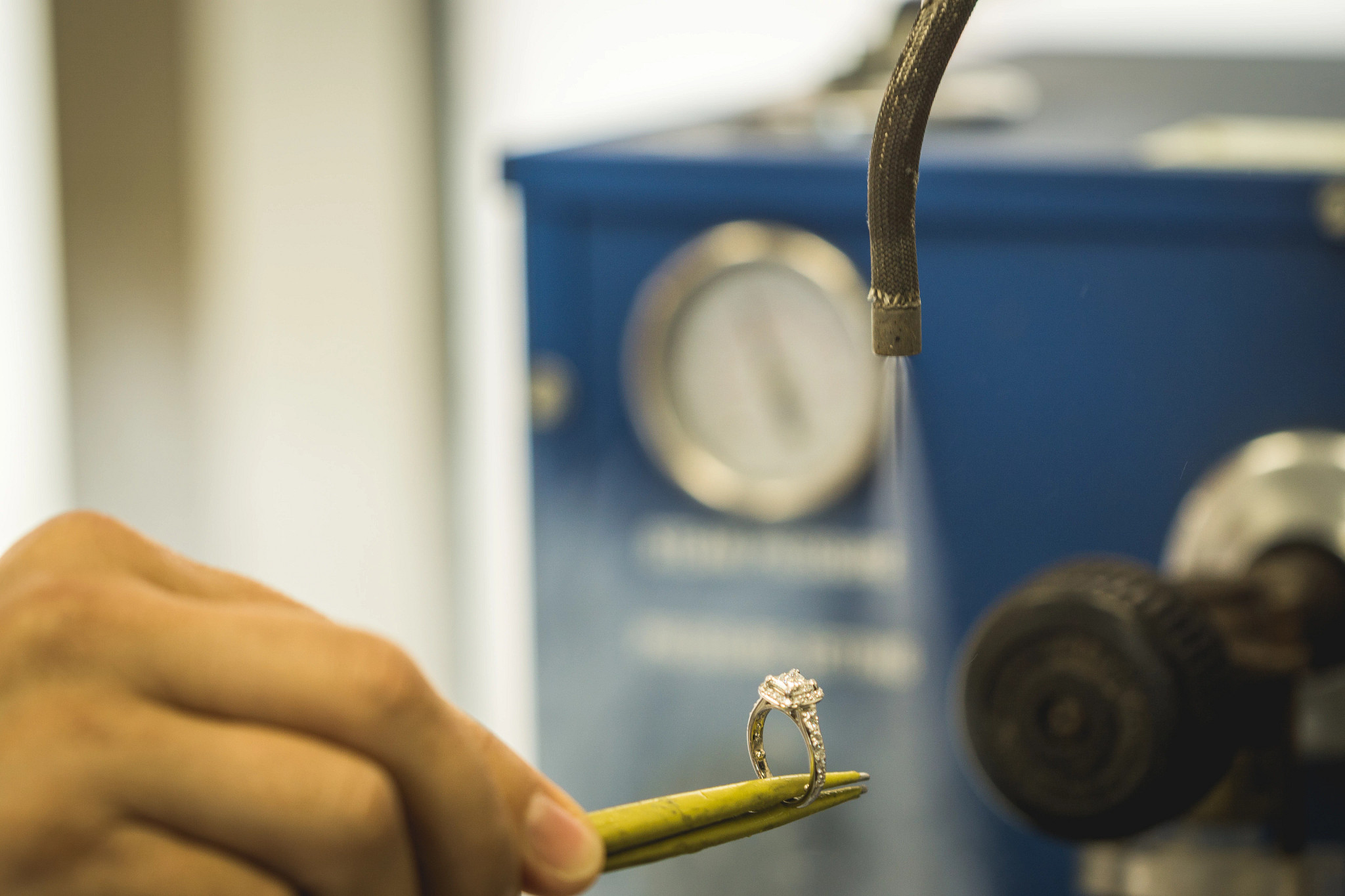
Learn how professional jewelers clean jewelry with machines and tools like ultrasonic and steam cleaners for the best jewelry care in-store.
January 5, 2026
AI Virtual Try-On Tools for Jewelers
Revenue boosters
Read: 4 min
How Jewelry Businesses Can Leverage AI Virtual Try-On Tools
Discover how jewelry businesses can leverage AI virtual try-on to drive sales and engage customers online.
December 11, 2025
Jewelers attending a tradeshow
Revenue boosters
Read: 5 min
5 Benefits of Attending Jeweler Trade Shows
Discover 5 key benefits of attending jewelry trade shows to grow your brand, network and stay ahead of trends.
December 5, 2025
1 / 1

Footer

Footer social navigation

Facebook TikTok X Instagram LinkedIn YouTube
  • Protect your business
  • Business Insurance
  • Business Risk Management
  • JM® Shipping Solution
  • Grow your business
  • Zing® Jewelry Marketplace
  • Revenue Boosters
  • Resource center

Legal Menu

  • Privacy Policy
  • Terms of Use
  • Accessibility
  • Cookie Preferences
  • Notice at Collection
  • Do Not Sell or Share My Personal Information (CA Residents Only)

© 2026 Jewelers Mutual Group - All Rights Reserved

Insurance coverage is subject to underwriting review and approval, and to the actual policy terms and conditions. Any descriptions are a brief summary of coverage and are not part of any policies, nor a substitute for the actual policy language. Coverage options may vary by state and by product. Exclusions and limitations may apply.

Insurance coverage is offered by a member insurer of the Jewelers Mutual Group, either Jewelers Mutual Insurance Company, SI (a stock insurer) or JM Specialty Insurance Company, or otherwise via other carriers through JM Insurance Agency Partners, Inc. Policyholders of Jewelers Mutual Insurance Company, SI and JM Specialty Insurance Company are members of Jewelers Mutual Holding Company.